There are three ways to top up an Apple Account in Russia right now: a gift code for the Russian region, MTS billing if you subscribe to MTS Premium, and an Apple account from another country that you fund with that country's codes or a card issued there. For a Russian account, the simplest route is a ruble code. You enter it in the App Store, the amount lands on your balance, and you need no password, no region change and no linked card.
You have to choose because the familiar routes closed one after another. The App Store stopped accepting Russian bank cards in March 2022. Paying from a phone balance remained, but on 1 April 2026 all four big carriers (MTS, Beeline, MegaFon and T2) switched it off on the instruction of the Ministry of Digital Development. Apple's own page for Russia says you can no longer top up your balance through payment systems, while money already on the balance can still be spent and codes you already hold can still be redeemed. Apple has since renamed the Apple ID in settings and help pages to "Apple Account", but it is the same thing.
A top-up code for a Russian account
This is the main route if your account's region is Russia. You buy a ruble App Store & iTunes code separately and redeem it directly in the App Store. Its face value goes onto your account balance, and from there you pay for apps, in-game purchases, iCloud+, Apple Music and other subscriptions.
The big advantage is that the account stays as it is. You don't change the region, your Russian apps stay in place, and only you know your login details, because you type the code in yourself. You can also give a code as a gift: until it is redeemed it isn't tied to any account, so you only need to forward it.
The downsides appeared in spring 2026. While phone billing worked, you could order a code of any face value inside the App Store, pay for it from your phone balance and send it to your own email. That path closed on 1 April, and journalists noticed that ruble codes on marketplaces got several times more expensive within the first few days. Today a code for the Russian region almost always costs more than its face value, and prices vary widely between sellers.
Two more limits apply. Denominations are fixed, so you can't match the exact price of a subscription and some money is left over. And under Apple's terms, codes bought for Russia are credited only to a Russian account. A Turkish or US code won't work on it: the App Store will tell you to redeem the code in another country or region.
Best for: almost everyone with a Russian account.
How to redeem a code
- Open the App Store on your iPhone and tap your photo or initials at the top of the screen.
- Tap "Redeem Gift Card or Code" (in some versions it's just "Redeem Code"). If the App Store asks, sign in to your Apple Account.
- Point the camera at the code or type it in by hand.
- Confirm the redemption, and the amount moves to your balance.
On a Mac, you redeem a code in the App Store through your name in the sidebar; on Windows, you enter it in the Apple Music or Apple TV app. On a physical Apple gift card, the redemption code starts with a Latin X, so don't confuse it with the serial number. If the App Store calls a code invalid, check the characters that are easy to mix up: 8 and B, 0 and O, 5 and S, 2 and Z.
Through MTS with an MTS Premium subscription
You still can't top up an Apple Account from your phone balance. But since September 2026, MTS has had a separate method for customers who subscribe to MTS Premium. The money doesn't come from your phone balance: it comes from a partner service called "Koshelek" (Wallet), which you top up in advance.
- Check that your Apple account's region is Russia: with any other region, you can't add a phone number as a payment method.
- Subscribe to MTS Premium if you haven't yet, and open the "Included in your subscription" list in your account. It should have an "App Store" line; old, archived subscriptions don't have it.
- In iPhone settings, tap your name, open "Payment & Shipping", then "Add Payment Method", and choose "Mobile phone" with your MTS number.
- Put money into the Wallet through your MTS account: the "Payments" section, "Wallets" item.
- In the App Store, tap your profile, choose "Add Funds to Apple Account" and pick an amount.
The plus is that the money reaches your balance with almost no loss: topping up the Wallet carries only a small fee, and you can choose any amount. There are three minuses. The method doesn't work without MTS Premium, and if you don't need the subscription itself, you should add its price to every top-up. At the time of writing, you can put no more than 9,000 ₽ a month onto an Apple Account this way. And this channel has been shut down once already, so don't count on it staying open.
Beeline, MegaFon and T2 had no similar method by October 2026. In the summer, Beeline customers received text messages saying "Apple payment is available again", but the company explained that these were about gift cards, and paying from a phone balance is still unavailable.
Best for: MTS customers who already use MTS Premium or were going to subscribe anyway.
An Apple account from another country
An account for Turkey, the US or another country is topped up with that country's codes, and you can also link a card from a bank in the same country, issued in your name. Codes for popular countries kept selling even in spring, when ruble codes vanished from some platforms. Prices for apps and subscriptions also differ noticeably from country to country.
But the country of an account isn't a setting you flip for a convenient payment method. Under Apple's terms, the services are available to you in your country of residence, and when you create an account for a country, you declare it as yours. To change the country on an existing account, Apple requires you to:
- spend the whole remaining balance;
- cancel any subscriptions that get in the way and wait for the paid period to end;
- wait for pre-orders, movie rentals and refunds to finish;
- leave Family Sharing if necessary, since all family members must be in the same country;
- provide a payment method for the new country if Apple asks for one.
If you have no payment method for the new country, Apple advises waiting until you are physically in that country and creating a new account there. After a change, some content may become unavailable, and apps released only in the Russian App Store, such as banking and government apps, can't be downloaded with such an account.
Best for: people who live abroad or have moved. Changing the country of an account that already has purchases and subscriptions just to get a payment method is a hassle: you have to spend the balance, cancel subscriptions, and lose access to Russian apps in the App Store.
Top-ups by login and password, and other people's accounts
Apple warns directly that if someone promises to top up your balance in exchange for your sign-in details or access to your account, or offers you someone else's account that already has apps and money on it, it may be a scam. The company asks you not to share your account details with anyone and not to sign in to an account that isn't yours.
None of the methods above needs your password: you enter the code yourself, and with MTS you pay from your own number. A shared account with subscriptions looks cheap, but everything bought on it belongs to someone else, and access can disappear any day.
Which method suits whom
For a Russian account, a code is the simplest way to top up an Apple Account. MTS customers with a subscription can use the Wallet, and an account from another country is for people who live there.
| Method | What you need | Best for | Main drawback |
|---|---|---|---|
| Ruble code | A code for the Russian region | Owners of Russian accounts | Markup over face value, fixed amounts |
| MTS with MTS Premium | An MTS number, the subscription and a funded Wallet | MTS customers with a subscription | Subscription fee, no more than 9,000 ₽ a month |
| Account of another country | That country's codes or a card from its bank in your name | People living abroad | Country change follows Apple's rules, no Russian apps |
| Giving a middleman access to your account | Login and password | Nobody | Apple names it a sign of fraud |
What happens to subscriptions when the balance runs out
While there is money on the balance, subscriptions renew and purchases go through. When the money is gone, Apple stops processing new purchases, including in-app ones, and renewals. A subscription that can't be charged will end, and access to its content may disappear.
Apps you bought earlier stay with you, and you can probably still update them. Your iCloud data also stays put after an iCloud+ subscription ends: you can manage the storage and download your photos and videos.
A few more balance rules that people often ask about. An unspent balance stays on the account. You can't share it with family: even in Family Sharing, the money on the balance is available only to its owner. You also can't buy a gift or a gift card with the balance, so the easiest way to top up someone else's Apple Account is to send them a code and let them redeem it themselves.
Subscriptions you started inside apps through the App Store follow the same rules. Some of them you can get without the App Store at all: for example, Telegram Premium can be gifted by @username, and no account sign-in is needed.
What to check when you buy a code
There are many code sellers, and they differ in more than price. Before you pay, check five things.
- Region. The code must be issued for your account's country. You can see it in iPhone settings: tap your name, then "Media & Purchases" and "Country/Region". In some versions of iOS this item is called "Content & Purchases".
- The total, not the face value. Compare what you pay with what reaches your balance. Journalists have observed that on small denominations the markup in percent is sometimes higher than on large ones.
- A denomination that fits your spending. Work out how much you spend on subscriptions per month and take a code, or a couple of codes, for that amount. Leftover money doesn't vanish, but you can't withdraw it either.
- When the code arrives. It's more convenient when it appears right after payment on the order page or in an email. If a seller sends codes by hand, ask how long you will wait and during which hours they reply.
- What happens if the code doesn't work. For a code that hasn't been activated, Apple advises going to the seller you bought it from, so find out in advance whether the seller will replace a dead code or refund you. Redeeming needs only the code itself, and a seller who asks for your Apple account details is a reason to walk away.
How it works with us
On our Apple gift cards page, at the time of writing, the same points work out like this.
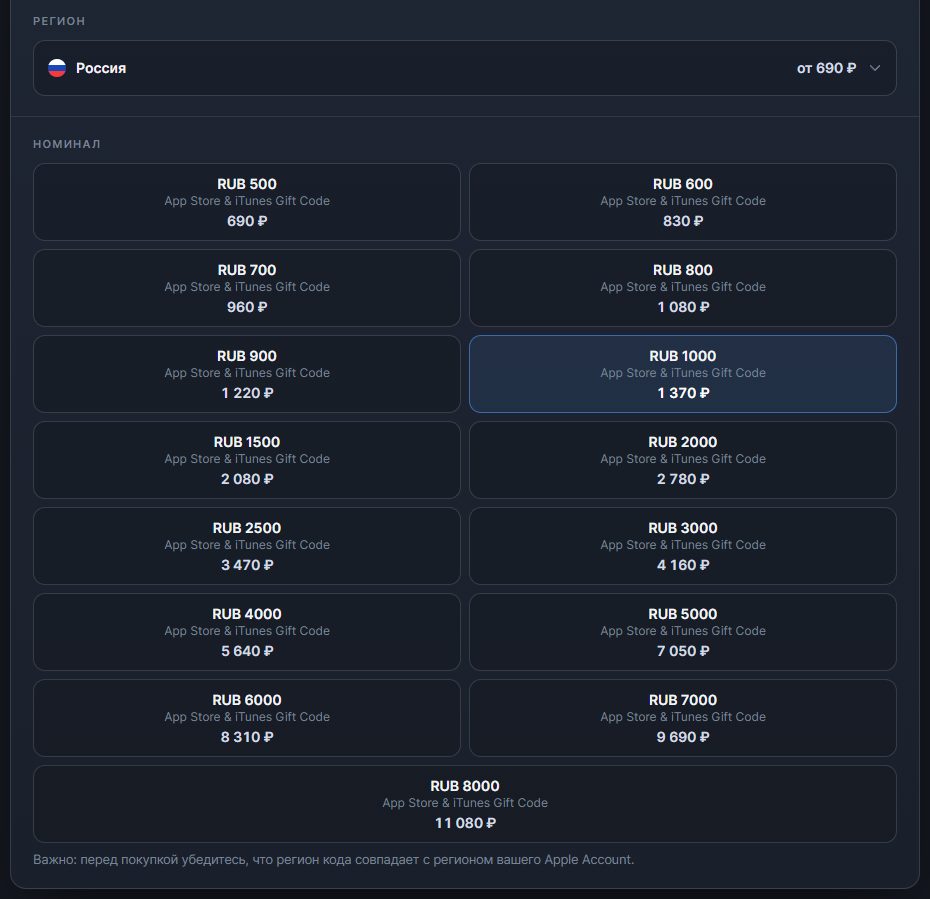
- Region. There are ruble codes for a Russian account from 600 ₽ to 8,000 ₽, and codes for accounts in Turkey, the US, India, the UAE, Germany and other countries. You choose the region first, and under the denominations there is a reminder to check it against your account's region. If you need several codes of the same denomination, enter the quantity.
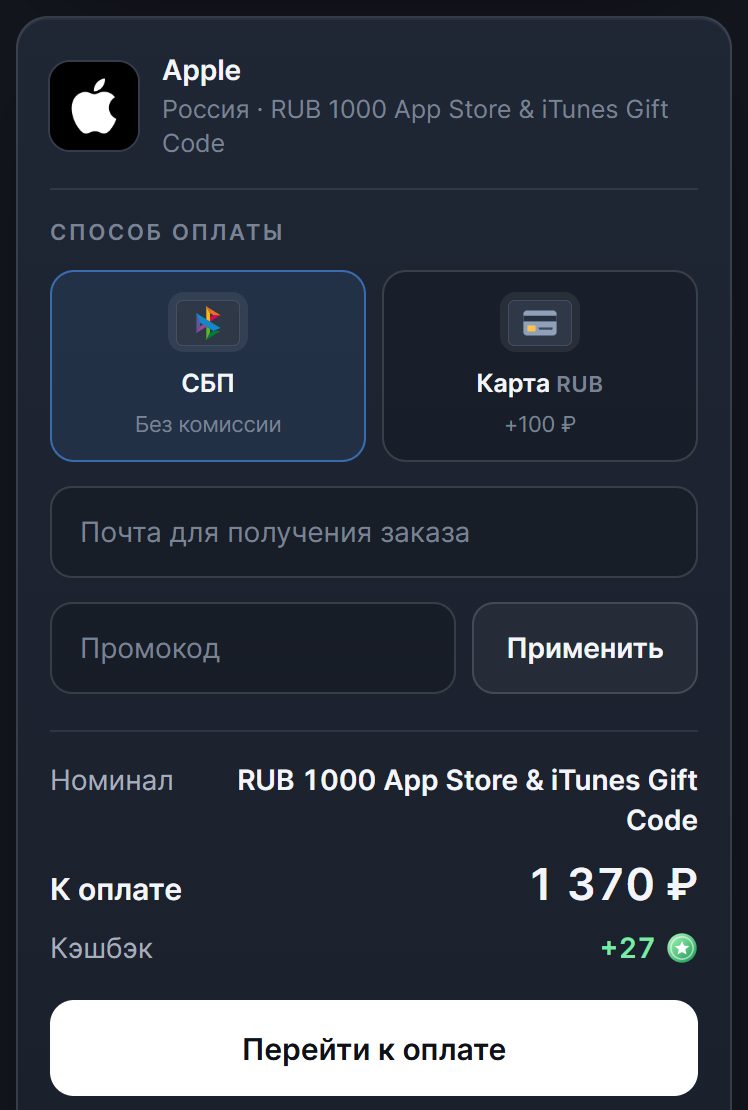
- The total before you pay. A ruble code for 1,000 ₽ costs 1,370 ₽ via SBP (the Faster Payments System), and paying by card adds 100 ₽. That is above face value, as with almost every ruble-code seller since April 2026.
- The code arrives on its own. After payment it appears on the order page, and the order details go to the email you give us. Delivery is automatic and runs around the clock: it usually takes a couple of minutes, though delays happen occasionally.
- No account details. We don't need your Apple login or password: you redeem the code in the App Store yourself, following the steps in the "How to activate" block on the same page.
- If the code doesn't work. An order counts as fulfilled once the code is shown on the order page, but you keep the right to file a claim: if the code doesn't work or doesn't match its description, write in the order chat. If a code failed because the account is in a different region, a refund may be refused. The details are in the refund policy.