You can activate a Steam key three ways: in the Steam client on a PC, on the Steam website in any browser, or from a phone, through the Steam mobile app or the same website. In the client you enter the key under Games → "Activate a Product on Steam…", the website has a dedicated form, and the app has no button for it, so you reach the form through the Support section. Activation itself takes a couple of minutes: sign in, paste the key, accept the subscriber agreement, and the game lands in your library.
People get stuck because the activation item is tucked away, and on a phone it is nowhere to be seen. A game key is also easy to confuse with a wallet top-up code, which is redeemed in a different place. If Steam answers with an error, the cause is usually one of three: a typo, a key someone has already entered, or a key region that doesn't fit your account.
What to check before you enter the key
A key works only once, so half a minute of checking pays off.
- It's a game key, not a wallet code. A Steam Wallet top-up code is redeemed on a separate page: Account details, then "Add funds".
- The key is made for Steam. Steam doesn't accept keys from other game services and answers them with an error. The platform a key is for is usually stated in the product description, in the email with the code, or on the box.
- The account is the one you will play on. Once entered, a key stays tied to that account for good, and Steam's rules don't allow moving games from one account to another. If you bought the key as a gift, send the code to your friend: until someone enters it, it isn't tied to anyone.
- The key region fits your account. Your store country is shown under Account details, and that is what gets checked against the key's list of activation countries. Why this matters most is covered below, in the section on errors.
- For add-on content, you own the base game. Steam accepts a DLC key only on an account that already has the base game.
Where to enter the key in the Steam client on a PC
If Steam is already installed on your computer, this is the shortest route: you can queue the download right away.
- Launch Steam and make sure you are signed in to the right account.
- Click "Games" in the client's top menu and choose "Activate a Product on Steam…". Some client versions word this item slightly differently.
- If Steam shows the subscriber agreement, accept it.
- Paste the key and click the confirm button. Copy the key whole from the email or the order page rather than retyping it, so that look-alike characters don't get mixed up.
- Steam tells you which game was added. Close the window: the game is already in your library, and the client offers to install it.
The same window opens from the "+ Add a Game…" button at the bottom left of the client window: its menu has an "Activate a Product on Steam" item.
The upside of this route is that downloading can start immediately. The downside is that you need a computer with the client installed and a sign-in already done.
How to activate a Steam key in a browser
The Steam website accepts keys too, so you need neither the client nor your own computer. In Steam Support, the article "Activating a product on Steam" has a "Registering through the browser" section with a link to the form. The form's address on the Steam store site ends in /account/registerkey.
- Open the form and sign in to your account. If you sign in from a new device, Steam may ask for a Steam Guard code.
- Paste the key into the "Product Key" field.
- Tick "I agree to the terms of the Steam Subscriber Agreement" and click "Continue".
- Steam shows the name of the game that is now on your account.
This is handy for activating a key from a work computer or at a friend's place. The downside is that the website doesn't download the game: you start the installation later from your library, on your own computer or remotely from your phone.
How to activate a Steam key on a phone
The Steam mobile app has no separate button for keys, and reviewers call this route the least obvious of all. You can still reach the form through Support:
- Open the Steam app and tap the three-line menu icon on the bottom bar.
- Go to "Support" and scroll down to the search bar at the bottom of the page.
- Type "activate" and pick the article "Activating a product on Steam" in the results.
- Tap the link in the "Registering through the browser" section. The form opens inside the app, where you are already signed in.
- Paste the key, accept the subscriber agreement and tap "Continue".
If the route through Support feels long, open the same form in your phone's browser. You will have to sign in again there, but there are fewer steps.
How to download the game if you entered the key on your phone
A key adds the game to your account, not to a device. So you can activate it on the road and start the download on your home computer from the same app: open the game in the app's library and choose "Remote Download". If the game you just added isn't visible in the app's library, close the app and open it again: the list doesn't refresh right away. Remote download works only when the computer is on and Steam is running on it under your account.
You can also enter a key for a Steam Deck game from a phone or a computer: the game will show up in the console's library if you are signed in there to the same account.
Which method to choose
| Method | What you need | Why it's convenient | What to keep in mind |
|---|---|---|---|
| Client on a PC | Steam installed and signed in | You can queue the download right away | The activation item is hidden in the Games menu |
| Steam website in a browser | A browser and a Steam sign-in | Works on any computer and phone | The download is started separately |
| Steam app on a phone | The app, signed in | No need to sign in again | The form is hidden in the Support section |
If a computer with Steam is within reach, entering the key in the client is simplest. If there is no computer at hand, the app or a browser will do, and you can start the download later, remotely from your phone or once you are home.
What the activation errors mean
Steam states the reason for a refusal outright, and the wording of the error tells you where to look.
- "Invalid product code". The key isn't for Steam, or it contains a mistake. Valve advises checking characters that are easy to confuse: zero with the letters O, Q and D, one with I and L, the letter O with Q and D, B with eight, G with six. If the key was copied unchanged and the error stays, take it up with the seller.
- "Product code already activated". The key is already tied to some account. If you may have entered it yourself earlier, the game is already on one of your accounts, and access to it is recovered through the Steam Support site. If not, the replacement comes from the seller, not from Steam Support.
- The product isn't available in your country. The key's region doesn't include the store country of your account. Activation doesn't change that country, and under Steam's rules you can change it only after moving, by paying with a local method, and no more than once every three months. The region name can mislead, too: for some "CIS" keys the country list includes Kazakhstan, Armenia and other neighbors, but not Russia. And some games from publishers that closed sales in Russia in 2022 will not activate on a Russian account, by either key or gift, according to reviewers.
- Too many activation attempts. After a run of failed entries, Steam stops accepting keys for a while. Reviewers' observations put the pause at about an hour, though it can run longer. Wait it out, then paste the key by copying it, without typing it by hand.
- Another product is required. This is how Steam answers a DLC key when the base game isn't on the account: activate the game first, then the DLC.
- The game asks for one more key. Some games also need a key for a third-party client or service. You don't need to look for it elsewhere: Steam issues it itself once the download has started. Right-click the game in your library and open "Manage" → "CD Keys".
How it works in our store
In our Steam key catalog the key's region is visible before payment, and the activation instructions arrive together with the key.
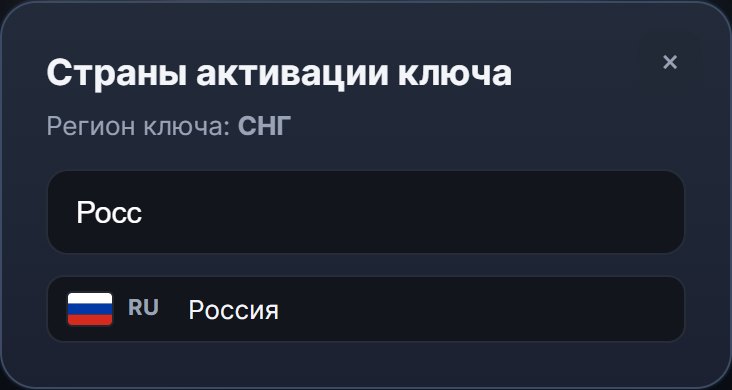
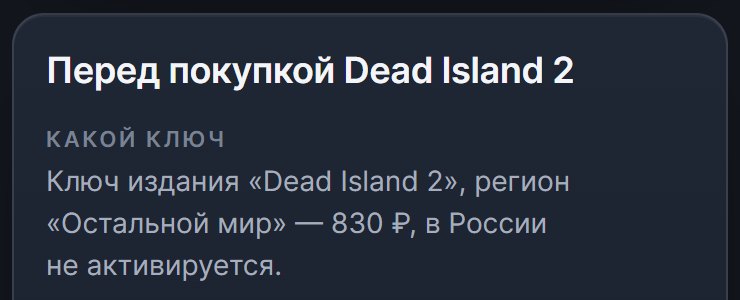
- The region is visible before payment. On a game page, each key region is labeled with the number of countries it activates in, and the button under the selector opens a searchable list of countries. The "Before you buy" block below states separately if this edition's keys work for an account from Russia. On the Dead Island 2 page, for example, Russia is in the country list of the "CIS" key, while for the "Rest of the world" key the block says outright that it cannot be activated in Russia.
- The key arrives by itself. Delivery is automatic and runs around the clock: the key usually appears on the order page 2–3 minutes after payment. Clicking the key copies it whole, so you can paste it into Steam without retyping. No access to your Steam account is needed, since you enter the key yourself.
- Instructions next to the key. The "Get order" button opens the delivery page, where the activation steps are laid out under the key, with a link to the Steam form.
- If Steam didn't accept the key. First compare your account's country with the key's country list. If it is on the list, write in the order chat and attach a screenshot of the error: at the time of writing, operators reply from 10:00 to 20:00 MSK. A defective key, or one that differs from its description, is grounds for a claim under the refund policy. If the key simply didn't fit the account's country, a refund may be refused, which is why you open the country list before paying.